
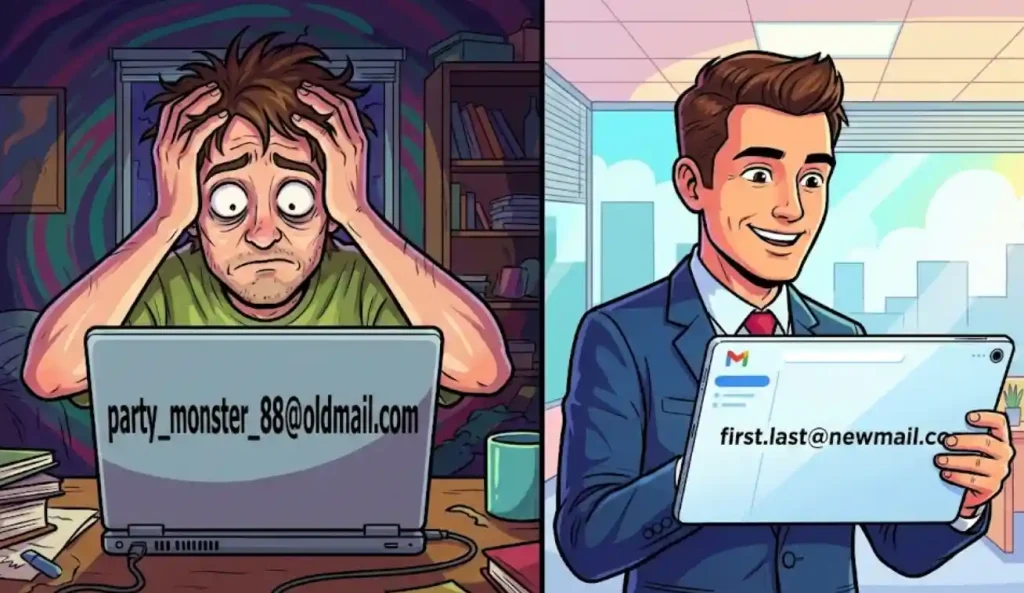
We all have that one digital skeleton in the closet. It’s that email address you created when you were 13 years old. Maybe it was inspired by a band that hasn’t released an album in a decade. For years, you have been stuck on the same Gmail. As of January 2026, the impossible is now possible. Google has quietly begun rolling out a feature that allows you to change primary Gmail email address without erasing your entire digital presence.
You don’t have to delete your account. You don’t have to lose your YouTube watch history. You don’t have to kiss your thousands of backed-up Google Photos goodbye. It is a massive update that fixes perhaps the single most annoying legacy issue in the Google ecosystem.
In this guide, I’ll guide you through this process step by step. We will look at the prerequisites, the strict rules you need to know so you don’t mess this up, and the exact buttons to push to give your online identity the upgrade it has been screaming for.
Why We Have Waited 20 Years for This
To understand why this is such a big deal, you have to look at how bad the old system was. Until this month, if you wanted a new Gmail name, you had to create a brand-new Google Account. On paper, that sounds fine. In reality? It was digital suicide.
You would lose your Google Maps timeline, which hurts if you love tracking your travels. You would lose every app you ever bought on the Play Store. Your Drive files would be trapped in the old account, forcing you to do this weird “share and copy” dance just to move a spreadsheet. It was a nightmare.
According to a report dropping from Fox News, this shift is largely about security and personal branding. It lets users modernize their online presence without the friction of a full data migration. For freelancers, students graduating college, or anyone just tired of their teenage username, this is a lifeline.
The Rules of the Road (Read This First)
Before you scramble to your settings menu, stop. Google has put up some very specific guardrails. They aren’t doing this to be mean; they are doing it to stop chaos. You need to know these rules before you click anything, or you might regret it.
1. The 12-Month Lockout
Google is not letting you change your handle whenever you feel like it. You can only change primary Gmail email address details once every 12 months. That is a hard limit. So, when you type in that new username, check the spelling. Check it twice. If you make a typo and hit save, you are stuck being “john.smiht” instead of “john.smith” for a full year.
2. Three Strikes and You’re Done
This is a permanent rebrand feature, not a disguise kit. Currently, the system limits you to a maximum of three changes for the lifetime of the account. If you burn through all three, your third choice is your forever name. Choose wisely.
3. The “Alias” Safety Net
Here is the good news. When you ditch your old, embarrassing email, it doesn’t vanish into the ether. It transforms into a permanent alias. This is crucial. It means that if your grandma or your bank still sends emails to “skaterboi99,” those emails will still land in your inbox. You just won’t have to use that name to log in anymore. You get the fresh start without the missed connections.
Step-by-Step: Executing the Change
Alright, Let’s dig into how to change primary gmail email address. Keep in mind, Google loves a “gradual rollout.” If these options aren’t there for you today, check back next week. It is hitting accounts in waves throughout January 2026.
Step 1: Get into the Cockpit
Open up your browser and ensure you are signed into the specific account you want to fix.
- Click your profile picture in the top right.
- Hit “Manage your Google Account.” (Or just type
myaccount.google.cominto the URL bar).
Step 2: Hunt for Personal Info
Look at the sidebar on the left (or the top scroll menu on mobile). You want the tab that says “Personal info.” Give that a click. This is the command center for your name, birthday, and contact data.
Step 3: The Magic Email Section
Scroll down a bit until you find the “Contact info” block. You will see a field labeled Email. Click the arrow to expand it.
In the dark ages (last year), clicking “Google Account email” gave you a depressing message saying, “This setting can’t be changed.” Today, if the rollout gods have smiled upon you, you will see a pencil icon or a link labeled “Change Google Account email.”
Step 4: Prove It’s You
Google gets very paranoid when you touch core identity settings. That’s a good thing. When you hit edit, expect a prompt. You’ll need to sign in again, use your passkey, or tap a generic “Yes, it’s me” notification on your phone.
Step 5: Claim Your New Identity
This is the moment. A box will appear asking for your new desired username.
- Type it in. Keep it professional.
firstname.lastnameis the gold standard. - The system checks availability instantly. Remember, you can’t take a username that someone else has or one that was deleted years ago.
Step 6: The Confirmation
You will get a pop-up. It reads like a legal warning, explaining that your old email is becoming an alias and that you’ll need to re-login everywhere.
- Take a breath.
- Click “Change Email.”
Done. Your digital house has a new address.
The Immediate Aftermath (Don’t Panic)
The second you hit that button, your digital world is going to wobble for a minute. Here is exactly what happens so you don’t freak out.
You get booted out. Everywhere. Your phone, your laptop, your tablet, your smart fridge—if it’s logged into Google, it’s going to sign you out. This is normal security protocol. You just need to log back in using your NEW email address. Your password hasn’t changed (unless you changed that too), just the username.
Third-Party Apps might hiccup. Most modern apps that use “Sign in with Google” (like Spotify, Pinterest, or Canva) utilize a hidden User ID number, not your email text, to identify you. So, theoretically, they should update automatically. In practice? Technology is messy. You might find a few older apps that get confused. You may have to unlink and relink your Google account in those specific app settings.
Chromebook Owners, listen up. If you run your life on a Chromebook, the login screen might throw a fit. You usually have to remove your old user profile from the login screen entirely and add yourself back as a “new” person with the new email. The beauty of Chromebooks is that once you do, all your bookmarks and settings sync right back down from the cloud.
Speaking of upgrades, if you are using this new professional persona to level up your workflow, you might be looking at paid tools next. We actually broke down the differences in ChatGPT Go vs Plus recently—it pairs perfectly with a fresh productivity start.
Troubleshooting: “Where is the Button?”
If you don’t see the pencil (edit) icon, don’t worry, you didn’t break anything.
- It’s rolling gradually: I mentioned this, google releases features to 1% of users, then 10%, then 100%. Patience is key.
- The “Work” Account Trap: If your email ends in
@yourcompany.comor@university.edu, this guide is useless for you. Your IT admin controls your email. This feature is strictly for personal@gmail.comaccounts. - Too New: If you made your account last week, Google might lock this feature for a bit to prevent spam bots from churning through names.
Why This Beats the Old “Forwarding” Hack
For the last ten years, the only advice tech bloggers could give you was: “Create a new account and forward the old emails to it.”
I’ve written that tutorial. I hated writing it. It was a messy workaround. You ended up managing two inboxes. Your Google Drive storage was split between two accounts (so you were paying for storage twice). You constantly forgot which account had your photos backed up. It was a fragmented, headache-inducing way to live.
This native method solves the fragmentation. You keep your 15GB (or 2TB) of storage. You keep your app purchases. You keep your sanity.
If you are pivoting this account to be the face of a new business or side hustle, having a clean address is step one. Once your branding is tight, you might be ready to start pushing content. If that’s where you are heading, take a look at our deep dive on how to set up TikTok Ads to get your first campaign running under your new, legitimate handle.
Final Thoughts
It is genuinely refreshing to see a tech giant actually listen to what people want. For a platform the size of Gmail—we are talking billions of users—changing the primary identifier of a database entry is a massive technical headache. That is why it took them 20 years to figure it out. But they did it.
So, go ahead. Kill the “skaterboi99” identity. Embrace the new you. Just make sure you pick a name you won’t be embarrassed by when 2046 rolls around!
For more real-talk tips on surviving the tech world, keep checking back here on TRICK47.

