
Ah, the Windows Update. That little icon in the corner of the screen. It’s a tiny box of mysteries, isn’t it? Some days, it’s a critical security patch, a silent guardian protecting you from the digital boogeymen. Other days, it’s a massive feature drop that changes everything. And then, sometimes, it’s… well, it’s a bit of a mess.
Which brings us to the very latest package from Redmond: the new optional KB5067036 Update for Windows 11, specifically for versions 25H2 and 24H2.
This isn’t your average, boring “Patch Tuesday” update. Oh no. This is a “Preview” update, which is Microsoft’s friendly way of saying, “Hey, wanna try some new stuff that might be mostly stable? Maybe?”
And this one is a doozy. It’s got a feature that we have been begging for since Windows 11 first launched, a bunch of genuinely nice quality-of-life tweaks, and… one of the weirdest, sloppiest bugs I’ve seen in a major release in a long, long time.
So, the big question is: should you hit “Download and install” on the KB5067036 Update, or should you run for the digital hills? Well, grab a coffee, settle in, and let’s dig deep into what’s really going on here.
The Good Stuff: What’s New in the KB5067036 Update?
First, let’s talk about the shiny new toys. To be fair, there’s a lot to like in this package. Microsoft has clearly been listening to some of our feedback, and the KB5067036 Update delivers on several long-standing requests.
The Star of the Show: The New Start Menu is Finally Here
Let’s be honest, the Windows 11 Start Menu has been a “love it or hate it” affair, with a lot of us falling into the “hate it” camp. The separation of “Pinned” apps and the “All Apps” list (hidden behind a tiny button) always felt clumsy. The “Recommended” section was, for many, just a useless chunk of wasted space.
Well, the KB5067036 Update finally addresses this, and the change is significant.
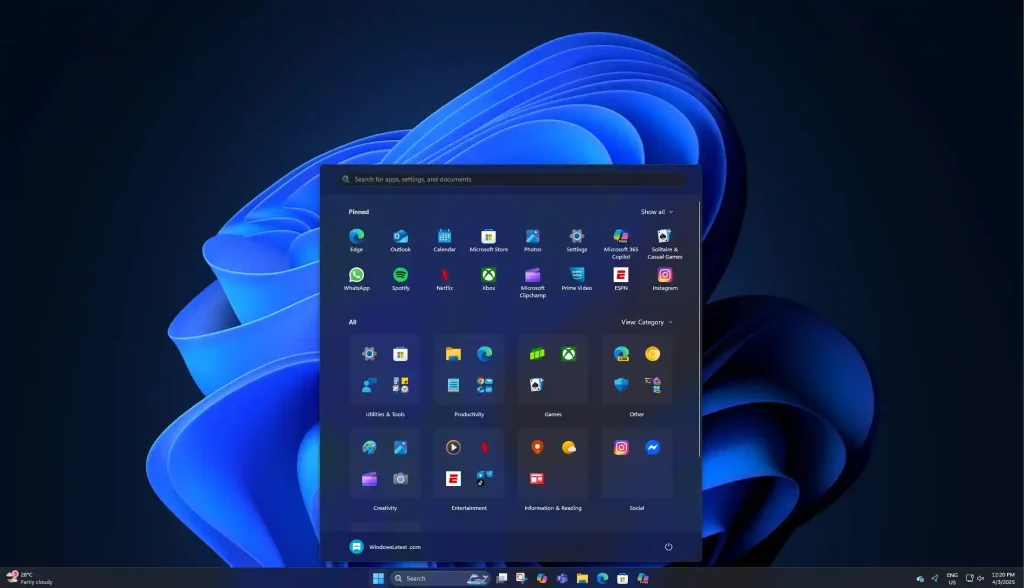
The new Start Menu is now a single, unified, scrollable page. That’s right—no more clicking a separate button to see all your applications. Your Pinned apps are still at the top, but right below them is your full “All Apps” list, ready to scroll through. It feels so much more intuitive, more like a natural evolution of the classic Start Menu we all knew.
But they didn’t stop there. The “All Apps” section now has three different views you can toggle between:
- Grid View: This is the new default, showing your apps as icons in an alphabetical grid. It’s clean, modern, and easy to scan visually.
- Category View: This is the most interesting one. Windows will automatically group your apps by type, like “Productivity,” “Utilities and tools,” “Creative,” etc. It’s a smart idea, though you can’t create your own custom categories… yet. We’ll see if that comes later.
- List View: For the traditionalists! This brings back the simple, alphabetical text list, just like in Windows 10.
And the best part? The part we’ve all been screaming for? You can finally go into Settings and turn off the “Recommended” feed entirely. Hallelujah! You can reclaim that space for more pins or just enjoy the clean, minimalist look.
The new menu is also responsive. If you have a big, wide-screen monitor, the Start Menu will actually use that space, expanding to show more columns of apps. It’s a small touch, but it makes the OS feel less like a “one size fits all” tablet interface and more like a proper desktop OS again. This new Start Menu is, without a doubt, the single biggest reason to even consider the KB5067036 Update.
File Explorer Gets Some Love (and More Copilot)
File Explorer, our trusty file-management workhorse, also gets a few tweaks in the KB5067036 Update.
First, the “Home” page has a new “Recommended” section UI. It’s designed to be smarter, but like the Start Menu’s old version, your mileage may vary.
The more significant change is the deeper integration of Copilot. When you hover over a file in the Home tab, you’ll now see a new shortcut: “Ask Copilot about this file.” This is actually pretty slick. Clicking it sends the file straight to Copilot, and you can immediately start asking questions like, “Summarize this 20-page PDF” or “What are the main points of this Word document?” It’s a real-time-saver… if you use Copilot, that is.
More importantly, this update fixes some incredibly annoying File Explorer bugs:
- Fixed the bug where the context menu (right-click menu) would randomly switch between the full view and the “Show more options” view.
- Fixed a bug where all your filters (like name, size, or groups) would reset if another app opened a File Explorer window.
- Fixed a bizarre bug where, if you opened the context menu, you suddenly couldn’t click anywhere else in File Explorer except inside that menu.
These fixes alone are a huge quality-of-life improvement.
Little Changes That Make a Big Difference
Beyond the big-ticket items, the KB5067036 Update is full of tiny refinements that just make the OS nicer to use.
My personal favorite? The new battery icons.
I know, it sounds silly. But for laptop users, this is great. The taskbar battery icon is now colourful and far more informative. You get a clear, visual cue of your battery’s status at a glance:
- Green: Charging or fully charged.
- Yellow: Battery saver is on, or the battery is getting low (under 20%).
- Red: Critically low battery.
It’s a simple, elegant change that your brain can process instantly without having to read a tiny percentage. And yes, these new colourful icons also show up on the Lock Screen, so you can see your status before you even log in.
There’s also a new “Administrator Protection” feature, which is a security-focused prompt that pops up when an untrusted or unsigned app tries to get administrator privileges. It’s another layer of security, and in 2025, you can never have too many of those.
The Bad: The Bizarre “Ghost” Task Manager Bug in KB5067036
Alright, we’ve had our fun with the new features. Now it’s time to talk about the elephant in the room. The big, glaring, “how-did-this-ever-get-past-QA” bug.
The KB5067036 Update is haunted.
I’m not kidding. It has a ghost bug, specifically with the Task Manager. And it’s a bad one.
What is this Crazy Bug, Anyway?
Here’s what happens: You press Ctrl+Shift+Esc to open the Task Manager, maybe to check on a process or see what’s eating your RAM. When you’re done, you do what you’ve done for 20 years: you click the “X” in the top-right corner to close it.
The window disappears. All good, right?
Wrong.
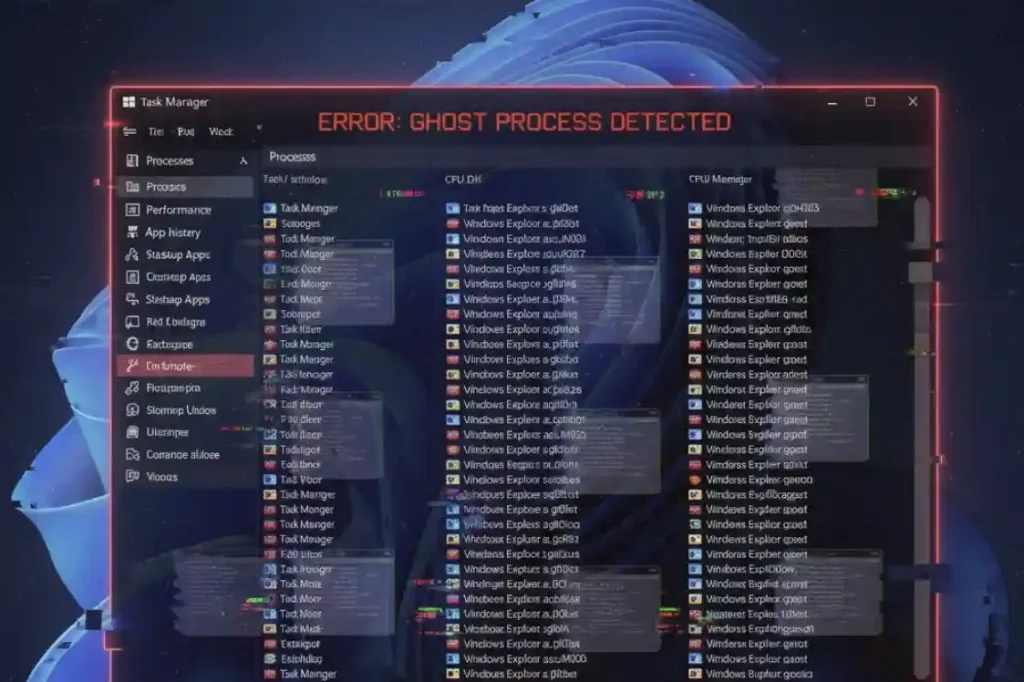
The KB5067036 Update introduces a bug where clicking the “X” doesn’t actually close the Task Manager. The window vanishes, but the taskmgr.exe process keeps running silently in the background.
But it gets so, so much worse.
The next time you open Task Manager, it doesn’t just re-open the one that’s already running. It starts a brand new, second instance. When you “close” that one, it also keeps running. Open it again? Now you have three ghost Task Managers running. And four. And five.
The tech site Windows Latest first reported this, and they found that each of these “ghost” instances continues to consume around 25MB of RAM and a little bit of CPU.
Think about that. If you’re someone who opens and closes Task Manager 10-15 times a day, you could end your workday with over a dozen “ghost” instances running in the background, silently eating up your system resources and slowing your computer to a crawl.
This is a rookie-level mistake. It’s sloppy, and it’s the kind of bug that makes you seriously question the testing process for this entire KB5067036 Update.
How to Check if You’re Affected (and How to Fix It)
If you’ve already installed this update (you brave soul), here’s how to check if you have the ghost problem.
- Press
Ctrl+Shift+Escto open Task Manager. - In the process list, look for “Task Manager.” You should see the one you just opened.
- Now, click the “X” to close the window.
- Wait a second, then press
Ctrl+Shift+Escto open it again. - Look at the process list again. Do you see two entries for “Task Manager”?
If you do, congratulations, your PC is haunted.
The “fix” is, unfortunately, ridiculous. Do not use the ‘X’ button to close Task Manager. Instead, you have to find the “Task Manager” process within Task Manager itself, right-click on it, and select “End task.” Yes, you have to use Task Manager to kill Task Manager.
If you’ve already got a bunch of them running, the quickest way to banish the ghosts is to use the command line.
- Open your (new) Start Menu and type
cmd. - Right-click on “Command Prompt” and select “Run as administrator.”
- Type this command and press Enter:
taskkill /im taskmgr.exe /f
This command will find every single running instance of taskmgr.exe and force-kill it. It’s the digital exorcism your PC needs after installing the KB5067036 Update.
The “Should You Install?” Verdict
So, we have an update that, on one hand, delivers the best Start Menu we’ve seen in years, and on the other, breaks a core system utility in a bafflingly amateur way.
This brings us back to the big question: should you install the KB5067036 Update?
Who is this Update For?
First, you must remember what this is. This is an optional preview update (Microsoft calls it a “C” release). It is not a security patch. It is not mandatory.
This update is for enthusiasts, developers, and early adopters. It’s for people who want the absolute newest features right now and are willing to accept the risk of game-breaking bugs. This is a beta test, and you are the tester.
And the Task Manager bug isn’t the only problem being reported. Users are also flooding forums with reports of the KB5067036 Update failing to install, often with a generic 0x800f0983 error. Worse, a few scattered reports are claiming the update “bricked” their PC, forcing them to do a full system restore.
My Personal Take (The Bloggy Part)
So, here’s the deal from my perspective. Am I installing the KB5067036 Update on my main work machine?
Absolutely not. Not a chance.
Why? Because “preview” is just a nice word for “beta.” And this Task Manager ghost bug is more than just a minor glitch; it’s a symptom of a rushed release. It’s a sloppy error in a core, fundamental part of the OS. If something this obvious got through, it makes me seriously wonder what else is broken under the hood that we can’t see.
The new Start Menu is cool, I’ll admit. The colourful battery icons are neat. But are they worth the risk of my PC slowing to a crawl because I’ve got 15 ghost Task Managers running? No thanks.
I’ll be waiting for the official, stable release, which will likely roll all these good features into next month’s mandatory “Patch Tuesday” update (and hopefully, fix the bad ones). I cover all of those stable releases over in the main IT and Technology news section of our site, and I’d much rather have a stable, reliable system for my day-to-day work.
My advice? Be patient. Let the enthusiasts find all the landmines. If you’re a developer or just love to tinker on a secondary PC, go for it. But if you rely on your computer to get things done, stay far away from this one.
If you are one of those brave souls and want to see the full, exhaustive list of every single tiny fix, you can read the official Microsoft release notes before you take the plunge.
What’s Your Call?
That’s my full breakdown of the good, the bad, and the genuinely buggy KB5067036 Update. It’s a perfect example of one step forward, one clumsy stumble back.
But that’s just my two cents. I’m curious to hear what you think.
Did you install the KB5067036 Update? Did you get the slick new Start Menu, or did you just get a PC full of Task Manager ghosts? Is Microsoft right to test these features in the wild, or should they do a better job before shipping them?
Let me know in the comments below!

