
Hey everyone! It’s Trick47 here.
If you are anything like me, you have probably spent the last year glued to ChatGPT or Claude. These AI tools are incredible, right? They write our emails, debug our code, and basically act as the second brain we always wished we had. But there is a catch—a big one that has been keeping me up at night lately.
Privacy.
Every time you type a prompt into ChatGPT, that data is zipping off to a server somewhere. Maybe you are fine with that for a recipe, but what about sensitive work documents? What about your personal journal entries? Or proprietary code?
This is why the biggest trend in tech right now is learning how to run LLMs locally.
By bringing these powerful “Large Language Models” directly onto your own laptop, you cut the cord to the cloud. No monthly subscriptions, no data tracking, and best of all—it works completely offline. I’ve been experimenting with this setup for weeks, and honestly, having a super-intelligent AI that lives entirely on my MacBook is a total game-changer.
In this guide, I’m going to walk you through exactly how to do it. We aren’t going to do the hard “developer” way with Python scripts and scary terminal errors. We are going to use the easiest tools available in 2025.
Let’s dive in.
Why You Should Run LLMs Locally
Before we get to the “how,” let’s briefly talk about the “why.” Why bother setting this up when ChatGPT is just a browser tab away?
- Ultimate Privacy: This is the big one. When you run LLMs locally, your data never leaves your device. You could literally unplug your internet router, and your AI would still work. This is perfect for analyzing sensitive financial data or personal health info.
- Zero Latency: Have you ever watched that cursor blink while ChatGPT “thinks”? Local models, especially smaller ones, can be incredibly snappy because they aren’t fighting for bandwidth on a crowded server.
- No Censorship/Guardrails: While safety is important, sometimes the “As an AI language model…” refusals get annoying. Local open-source models often give you more freedom and control over the personality of the bot.
- It’s Free: Aside from the electricity to power your laptop, running these models costs $0. No $20/month subscription fees here.

What Hardware Do You Need?
Okay, let’s manage expectations. You aren’t going to run LLMs locally that are the size of GPT-4 on a Chromebook. Those massive models require server farms. However, you can run models that are surprisingly close to GPT-3.5 or GPT-4-mini on consumer hardware.
Here is the sweet spot for 2025:
- Mac Users: You guys are winning right now. Apple Silicon (M1, M2, M3, M4 chips) has “Unified Memory,” which LLMs love. If you have a Mac with 16GB of RAM or more, you are golden.
- Windows/Linux Users: You ideally want a dedicated NVIDIA graphics card (GPU). Something like an RTX 3060 (12GB VRAM) or higher is fantastic.
- Minimum Specs: You can run these on just a CPU with 8GB of RAM, but it might be a bit slow. For a smooth experience, 16GB of RAM is the recommended baseline.
If you are trying to run LLMs locally on an older machine, don’t worry—I’ll show you how to pick smaller, faster models that won’t melt your computer.
Step 1: Install Ollama (The Magic Tool)
For a long time, running AI locally was a nightmare of Python dependencies and confusing GitHub repositories. Then came Ollama, and it changed everything.
Ollama is a tool that packages everything you need into one simple installer. It acts as the backend “engine” that powers the AI.
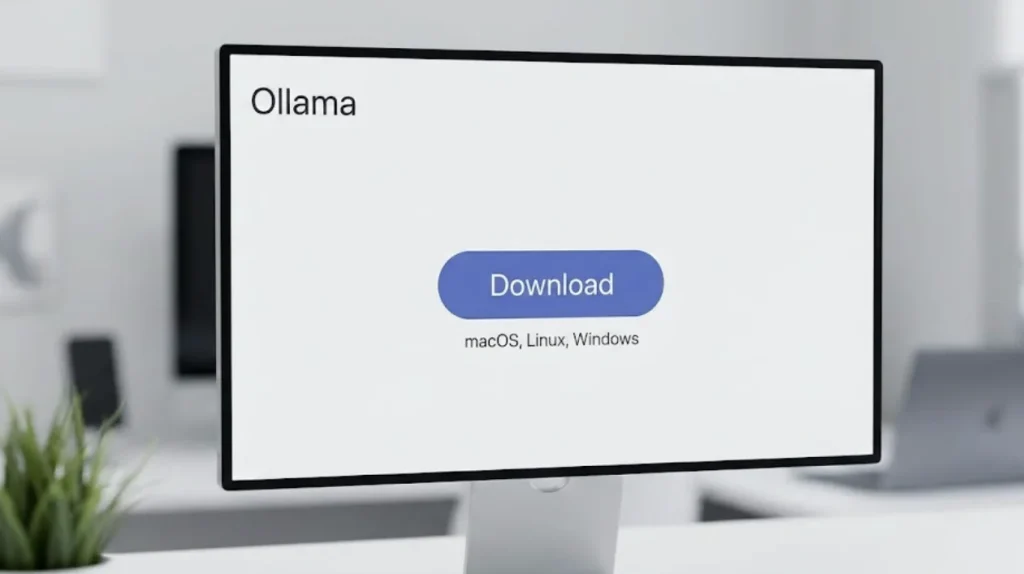
- Head over to Ollama.com.
- Click the big Download button. It detects your OS automatically (Windows, macOS, or Linux).
- Run the installer. It’s a standard installation process—next, next, finish.
Once it’s installed, it might feel like nothing happened. That’s because Ollama runs in the background. To use it, we need to open your computer’s terminal (or Command Prompt on Windows).
Don’t panic! I promise we only need to type one command.
Step 2: Choosing Your First Model
Now we need to download a “brain” for Ollama to use. These “brains” are the models. In the open-source world, companies like Meta (Facebook), Mistral, and Google release these models for free.
Here are my top recommendations for beginners:
- Llama 3 (8B): Released by Meta, this is currently the king of efficiency. The “8B” stands for 8 Billion parameters. It’s smart, fast, and runs on almost any decent laptop.
- Mistral: A fantastic model that is very good at logic and coding.
- Gemma 2: Google’s open model, which is surprisingly creative.
For this tutorial, we are going to use Llama 3 because it is the most well-rounded option for general chatting.
Step 3: Running the Command
Open your Terminal (Mac) or Command Prompt/PowerShell (Windows).
Type exactly this command and hit Enter:
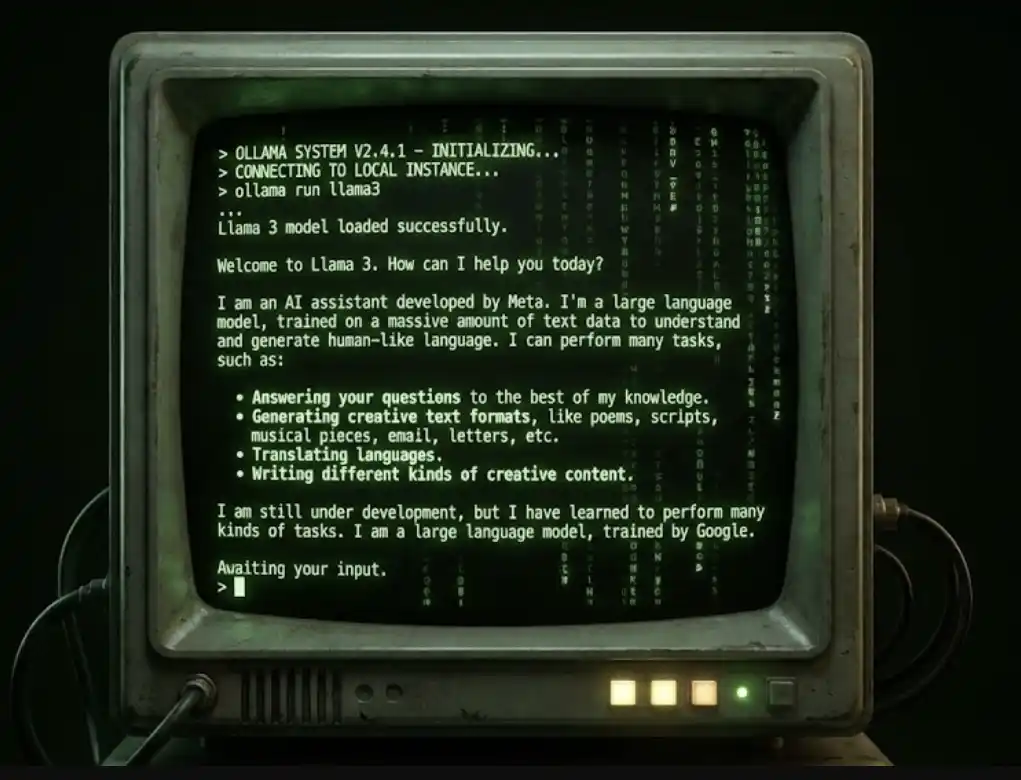
ollama run llama3
Here is what will happen:
- Ollama will see you don’t have the “Llama 3” model yet.
- It will automatically start downloading it (it’s about 4.7 GB, so give it a minute depending on your internet speed).
- Once the download finishes, you will see a simple prompt:
>>>.
That’s it. You are in.
Type “Hello, who are you?” and hit Enter.
The AI will reply instantly. You are now chatting with a supercomputer-level AI, and not a single byte of data is leaving your room. You have successfully managed to run LLMs locally.
Step 4: Making It User-Friendly (Optional)
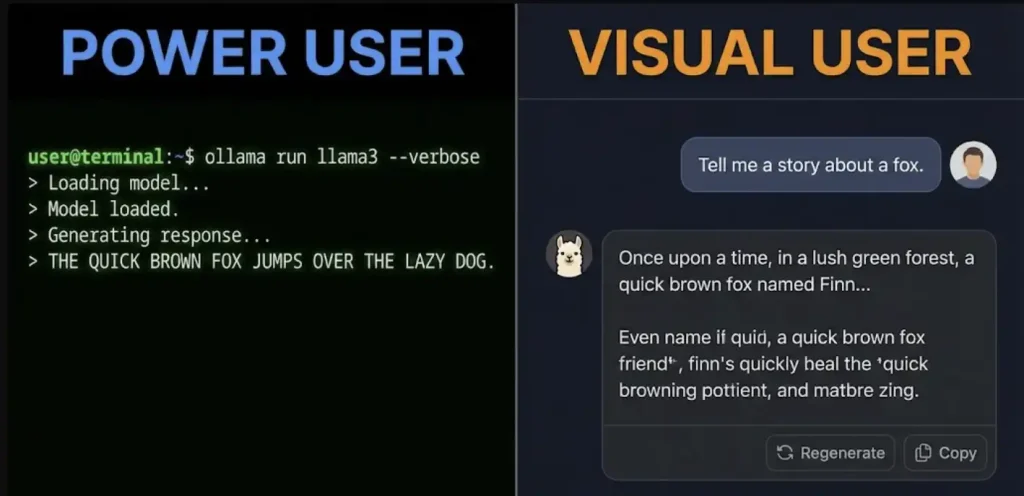
Okay, typing in a black terminal window is cool for “hacker vibes,” but it’s not very practical for writing long emails or coding. You probably want an interface that looks like ChatGPT.
Since Ollama is just the engine, we can put a pretty “skin” on top of it.
Option A: The Browser Extension (Easiest)
There are Chrome extensions like “Page Assist” that detect Ollama running on your computer and give you a sidebar chat interface instantly. This is the quickest way to get a UI.
Option B: LM Studio (The All-in-One Alternative)
If you really hate the command line and couldn’t get Ollama working, there is another tool called LM Studio.
LM Studio is a desktop app that you download, open, and click buttons to download models. It has a beautiful interface right out of the box.
- Download it from the LM Studio website.
- Use the search bar on the left to type “Llama 3”.
- Click “Download” on the top result.
- Click the “Chat” bubble icon, select your model at the top, and start typing.
I personally prefer Ollama because it is lighter on system resources, but LM Studio is fantastic for visual learners who want to see exactly how much RAM the model is using.
Practical Use Cases for Your Local AI
Now that you have this running, what should you actually do with it? Here is how I use my local setup daily:
1. Private Journaling & Therapy
I can pour my heart out to the AI, asking for advice on personal situations or just venting, without worrying that an OpenAI employee might review that chat log for “safety training.”
2. Coding Assistant
If you are a developer, you can feed it your proprietary code snippets. Llama 3 is surprisingly good at finding bugs in Python or JavaScript. Since the code stays local, you aren’t violating any company NDAs.
3. Summarizing Private Documents
You can copy-paste messy meeting notes or financial drafts and ask the AI to “clean this up and make it professional.” It’s like having a secretary who is locked in a soundproof room—total confidentiality.
For more guides on how to leverage these tools for specific tasks, check out our section onAI Tutorials where we dive deeper into prompting strategies.
Troubleshooting: When Things Go Wrong
Even though it is easier than ever to run LLMs locally, you might hit a snag. Here are the common issues:
- “The AI is responding really slowly”: This usually means your computer ran out of RAM and is using your hard drive for memory (swapping). Try a smaller model. Instead of
llama3, tryollama run llama3:8b-quantizedor look for “Phi-3,” which is a tiny model by Microsoft that runs on almost anything. - “Fan noise is loud”: Yeah, AI is math-heavy. Your processor is working hard. This is normal!
- “It’s hallucinating”: Local models, especially the smaller 8B ones, aren’t quite as smart as GPT-4 (which is likely 100x bigger). They might make up facts more often. Always double-check factual info.
The Future is Local
I honestly believe that in a few years, running an AI on your laptop will be as common as having a web browser. The chips are getting faster, and the models are getting smaller and smarter.
By setting this up today, you are ahead of the curve. You have taken back control of your data. You have a powerful assistant that works on an airplane, in a cabin in the woods, or just in your office when the Wi-Fi goes down.
So, go ahead and give it a try. Open that terminal, type ollama run llama3, and say hello to your new, private digital friend.
Let me know in the comments if you managed to get it working or if you have a favorite model I should try out next!
Happy experimenting!
Looking for more tech deep dives? Don’t forget to explore our other guides at Trick47 Tutorials.

